Systems
Systems are the name for linked physical security platforms in ExceedIntegrate. Most customers will only have one system linked to their account, but larger organizations may have more than one (for example, one per region).
Refer to the Supported Platforms page for information on which platforms are supported.
Monitoring status
Systems are monitored for communication status automatically. The status of a system can be viewed on the Systems list page.
| Status | Meaning |
|---|---|
 | The system has communicated recently and is working correctly. |
 | The system is newly created and the integration process has not yet been completed. |
 | The system was previously communicating but has since stopped. This message only appears after communication fails for > 5 minutes. |
Integration
Integration is the process of linking ExceedIntegrate to your physical security platform. After creating a system, basic instructions for integration are shown in ExceedIntegrate.
Genetec Security Center
These instructions were created using Security Center 5.12.0. Older versions are supported but directions may vary.
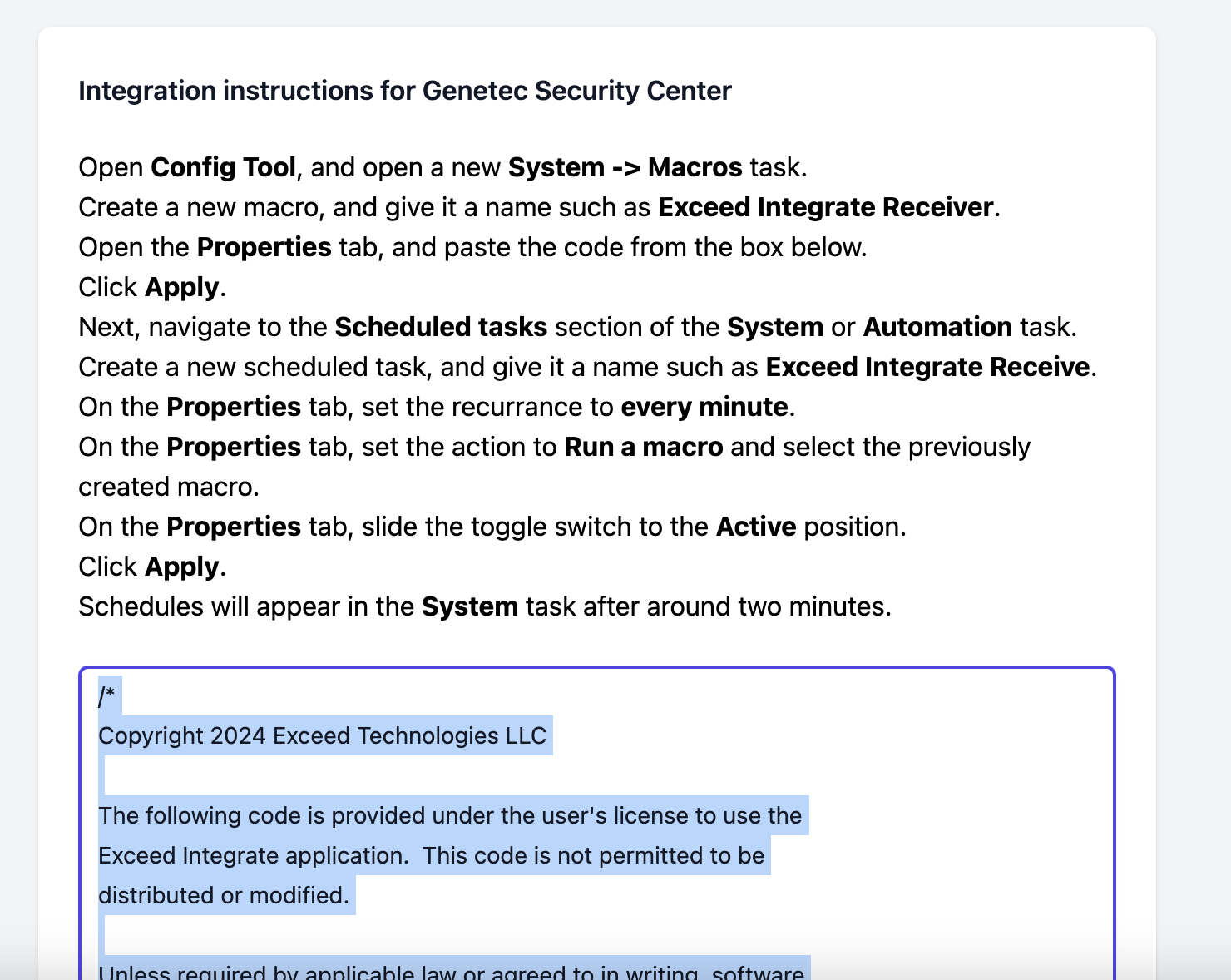
Create a new system in ExceedIntegrate. Be sure to select Genetec Security Center as the type. Once the system has been created, click the eye symbol in the list to start the integration process.
Copy the block of code that is displayed on the integration page to your clipboard.
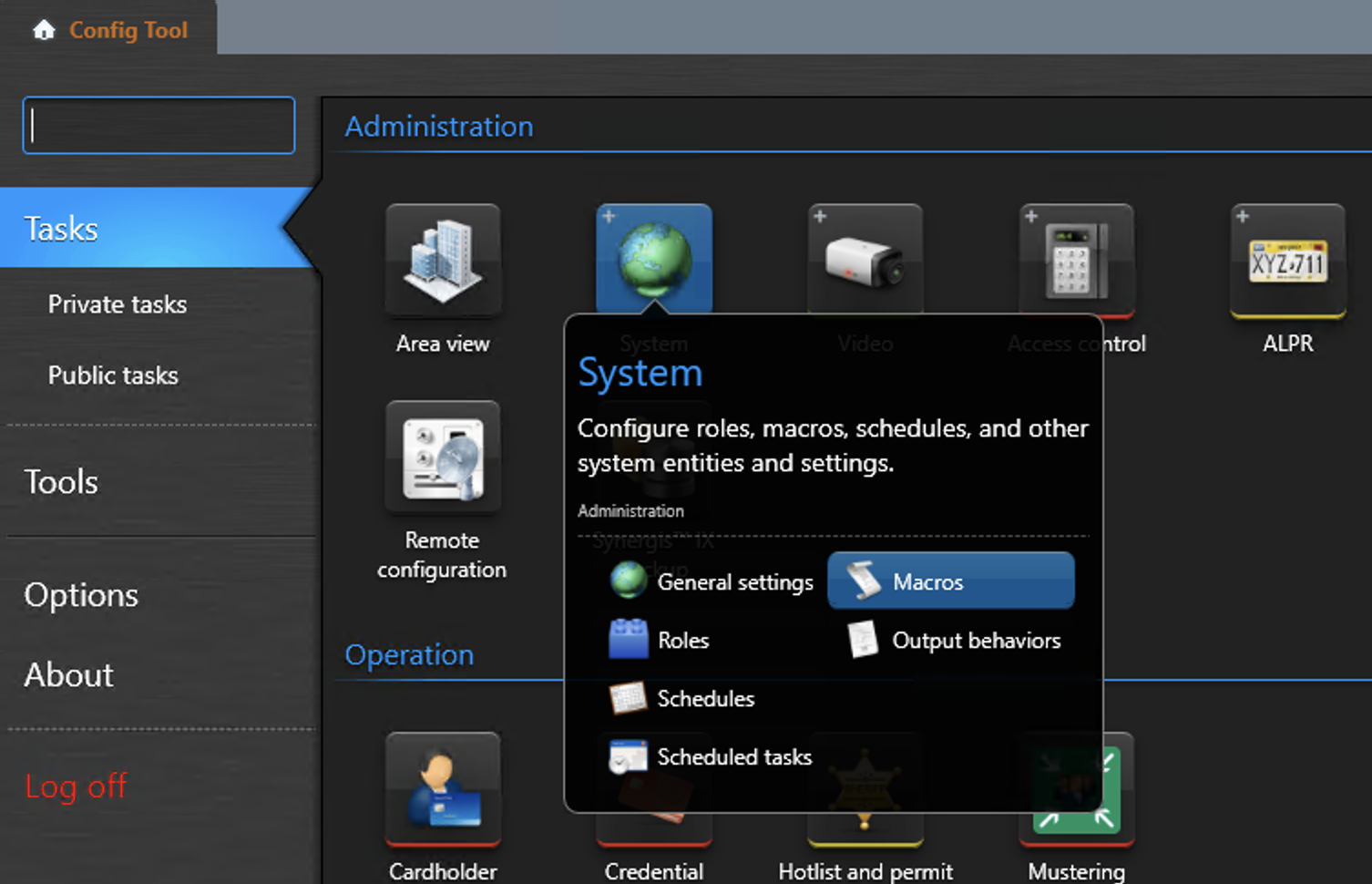
Next, open Config tool and select the System - Macros task.
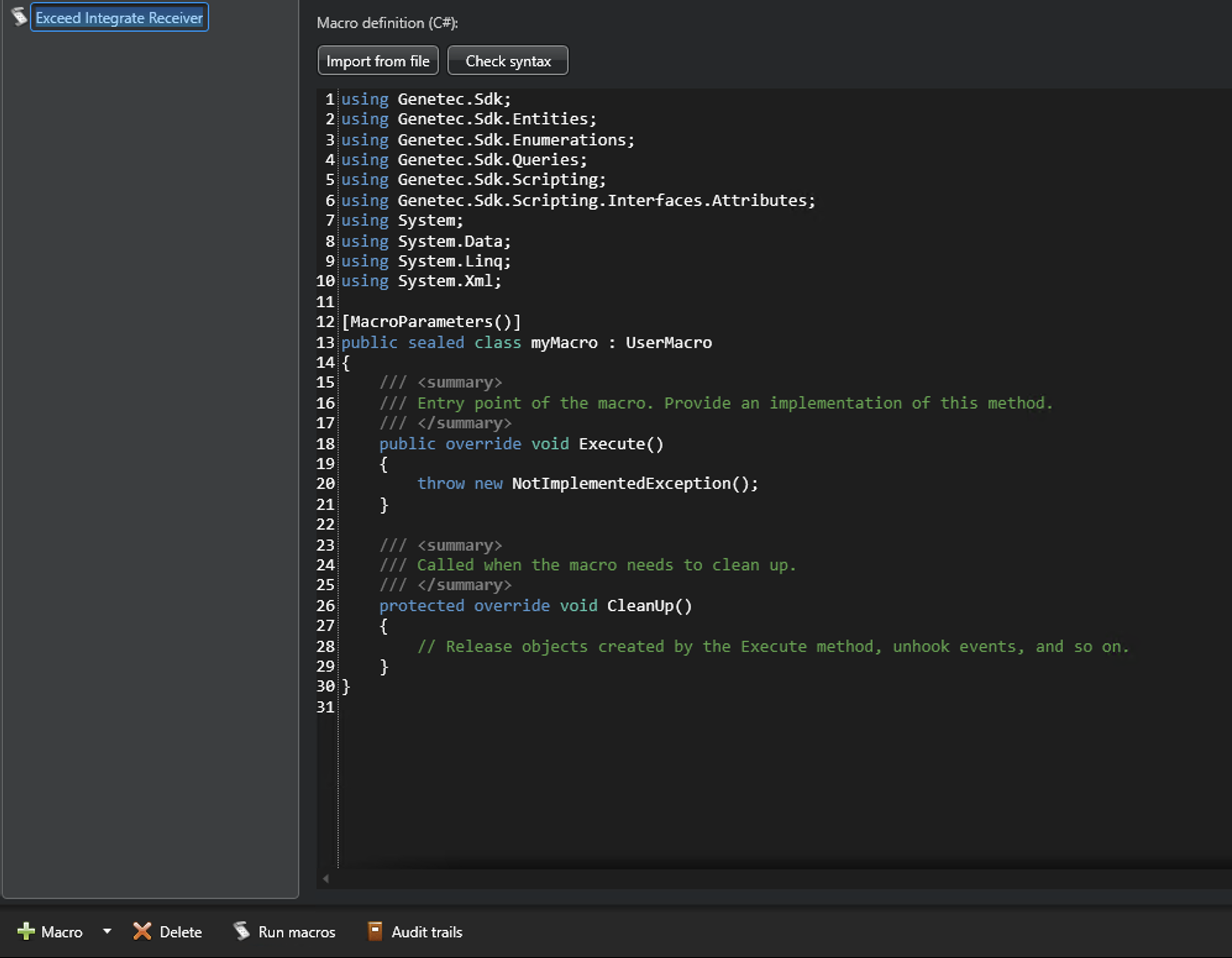
Click the Add Macro button at the bottom left of the window. Then, enter a name for the macro such as ExceedIntegrate Receiver.
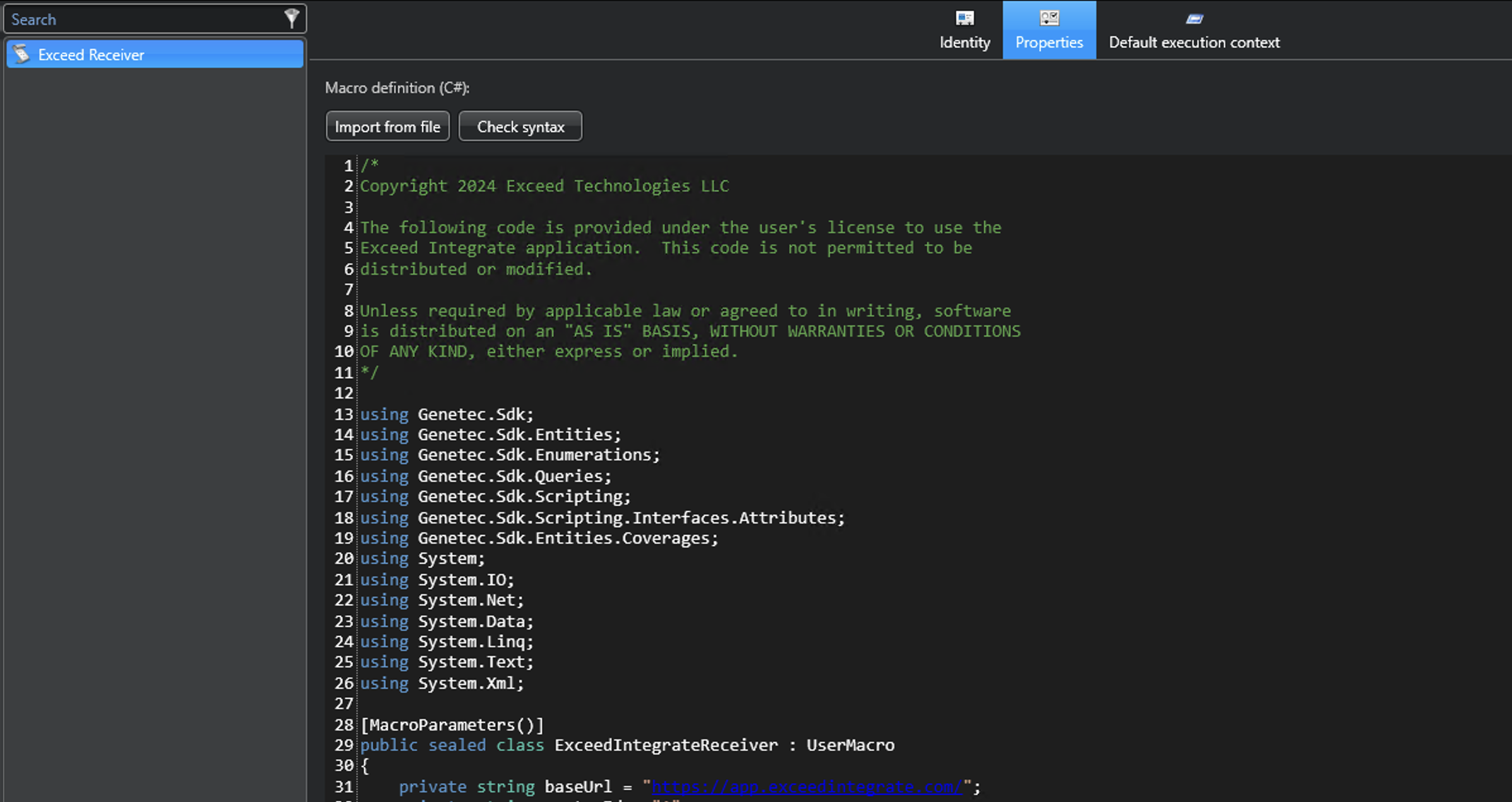
Next, select all the prefilled code in the Macro window and press Backspace. Then, paste the code from the web page in the box.
Now, click the orange Config tool tab, and navigate to the Automation task. Click the Scheduled tasks tab once the new task loads.
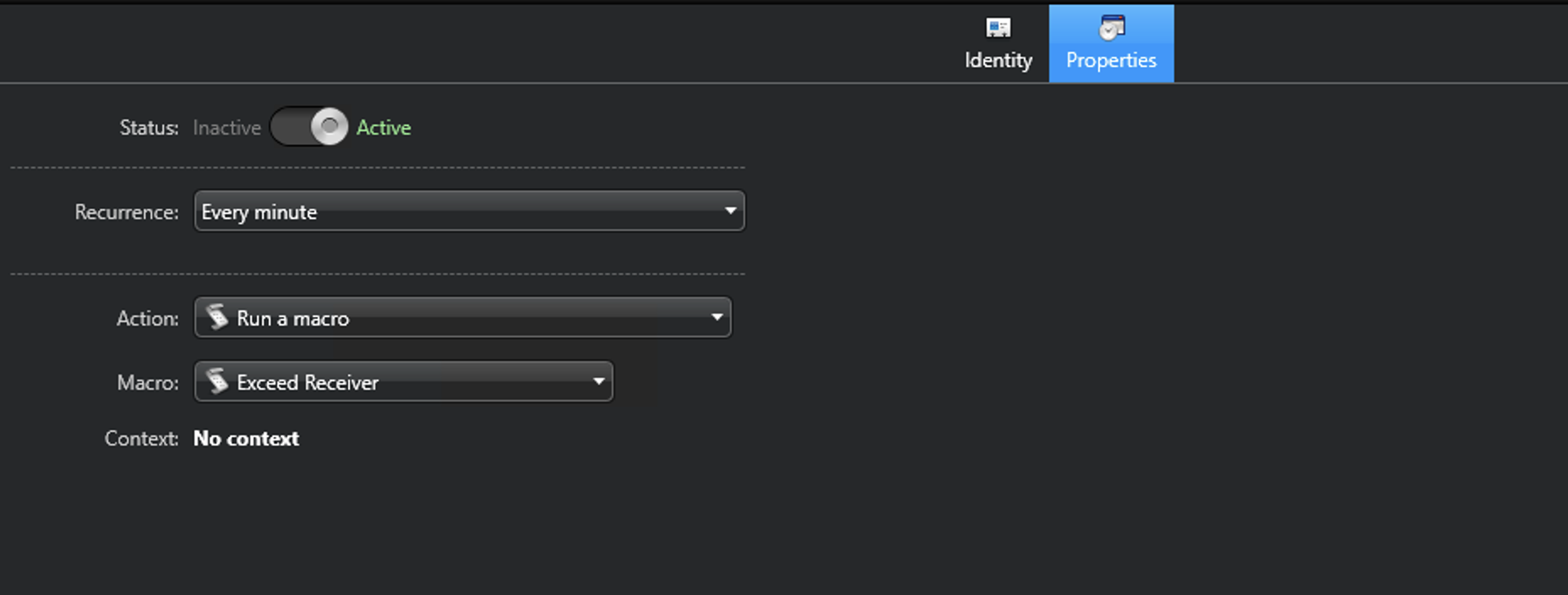
Create a new scheduled task named Exceed Integrate Check. On the properties tab, set the following settings:
| Setting | Value |
|---|---|
| Status | On (Active) |
| Recurrence | Every minute |
| Action | Run a macro |
| Macro | ExceedIntegrate Receiver (or other name you gave the previously created macro) |
| Context | No context |
Click Apply to save your changes. Your system status icon in ExceedIntegrate should show Connected in the next minute or so.